
Docker pull and push
In this post we take a look at the docker pull and docker push commands, the two halves of moving images in and out of Docker Hub.
docker pull is what you use to bring images that live on Docker Hub down onto your own computer.
docker push goes the other way: it sends an image you created up to Docker Hub and opens it to public access.
As an example, let’s pull the debian image down from Docker Hub.
docker pull debian:latest

To check what we pulled, the command below lists the image files we now have locally.
docker images
Now for the other direction: pushing a Docker image we built earlier up to the Docker Hub address. Before anything else, this needs a Docker Hub account. https://hub.docker.com
With an account ready, we change the tag of that image we created earlier.
The tag has to be written in the form username/imagename, and once it is, we hand it off to the push command.
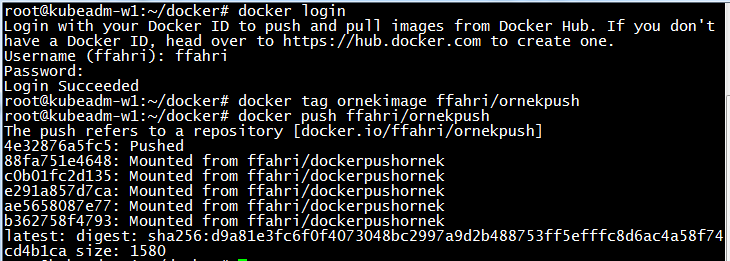
If you would rather not share them openly, you can make these images private. And if you do publish them publicly, it is well worth being careful not to share passwords or any secret information along with them.
– Turkish Version –
Docker pull ve push
Bu yazımızda imageleri Docker Hub’a taşımanın ve oradan çekmenin iki yarısı olan docker pull ve docker push komutlarına bakıyoruz.
Docker pull; Docker Hub’da bulunan imageleri kendi bilgisayarımıza çekmeye yarıyor.
Docker push ise tam tersi yönde çalışıyor: kendi oluşturduğumuz bir imageyi Docker Hub’a gönderip public erişime açıyor.
Örnek olarak debian imagesini Docker Hub üzerinden çekelim.
docker pull debian:latest
Çektiğimizi kontrol etmek için, aşağıdaki komut artık yerelde bulunan image dosyalarını listeliyor.
docker images
Şimdi diğer yöne geçelim: daha önceden oluşturduğumuz bir docker imagesini Docker Hub adresine push edeceğiz. Her şeyden önce bunun için bir Docker Hub hesabına ihtiyacımız var. https://hub.docker.com
Hesabımız hazır olunca, önceden oluşturduğumuz o imagenin tagini değiştiriyoruz.
Tagi kullanıcıadı/imageadı şeklinde yazmamız gerekiyor, ve yazdıktan sonra işi push komutuna devrediyoruz.
Açıkça paylaşmak istemiyorsanız bu imageleri private hale getirebilirsiniz. Public olarak paylaşıyorsanız da, şifre ve gizli bilgileri beraberinde paylaşmamaya dikkat etmek oldukça yararlı olacaktır.