
Installing Docker CE
In this post we install Docker on Linux systems (Ubuntu/CentOS).

If you want the full background on what Docker actually is, see https://www.docker.com/what-docker
There are two ways to go about the installation.
The first is the manual route: add the Docker repository to the package manager, then pull the packages from there and install them.
The second is to let it happen automatically through https://get.docker.com, which is the path we’ll take here.
$ wget https://get.docker.com
Because it gets saved as index.html, we first need to make that file executable.
$ chmod +x index.html
From there, the script takes care of the rest.
$ sudo ./index.html

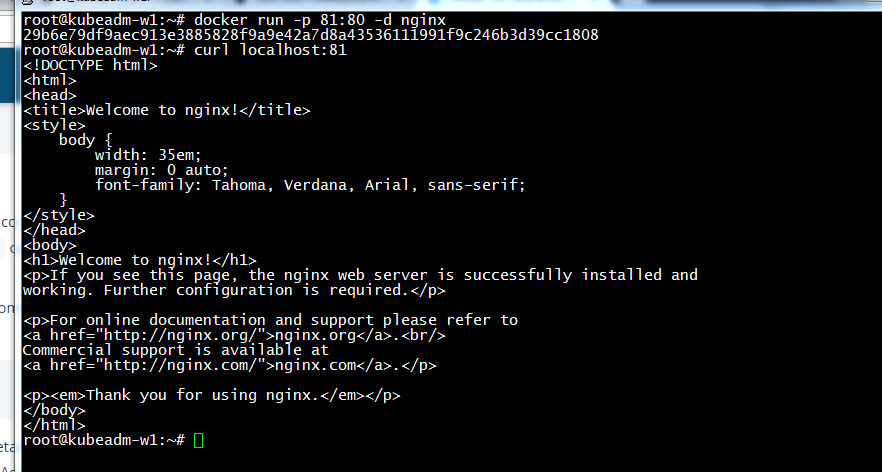
To see it in action, here is how pulling and running the nginx image looks:
$ sudo docker pull nginx

$ sudo docker run -p 80:80 -d nginx
– Turkish Version –
Docker CE kurulumu
Bu yazımızda Linux sistemlerde (Ubuntu/CentOS) docker kurulumu yapıyoruz.
Docker’ın tam olarak ne olduğuna dair detaylı bilgi için https://www.docker.com/what-docker
Kurulumu 2 farklı şekilde yapabiliriz.
Birinci yol elle yapılan yol: docker reposunu paket yöneticisine ekleyip oradan paketleri çekip kurmak.
İkinci yol ise https://get.docker.com adresini kullanarak otomatik yapmak, ki burada bu yolu izleyeceğiz.
$ wget https://get.docker.com
index.html olarak kaydettiği için önce bu dosyayı execute edebilir hale getirmemiz gerekiyor.
$ chmod +x index.html
Gerisini ise script hallediyor.
$ sudo ./index.html
Çalıştığını görmek için, örnek olarak nginx imajının çekilip çalıştırılması şöyle görünüyor:
$ sudo docker pull nginx
$ sudo docker run -p 80:80 -d nginx